
Install your ISP security certificate before you browse.
To keep you safe online, your school decrypt HTTPS traffic. Please install the trusted certificate below so your connection stays secure and free of warning messages.
Download your ISP certificate
TalkStraight
LGfL
RM Education
Exa Networks
How to Install
Follow the steps below carefully. If you require assistance, please contact eduthing.
Windows
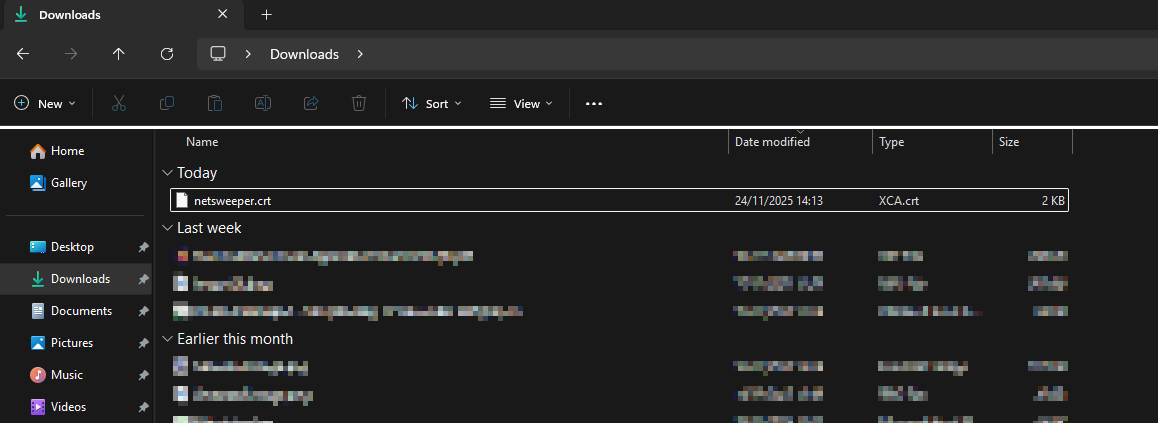
- Download the certificate file above.
- Locate the downloaded certificate file (usually in the Downloads folder).
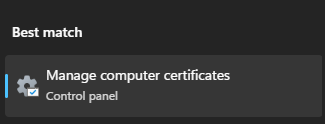
- Open the Start menu and search for "Manage Computer Certificates".
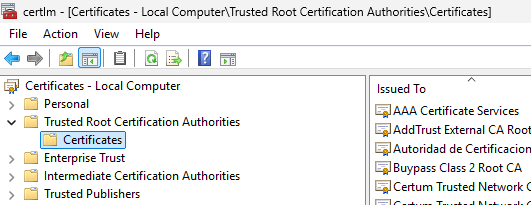
- In the Certificates window, expand the "Trusted Root Certification Authorities" folder.
- Right-click on the "Certificates" folder and select "All Tasks" > "Import".
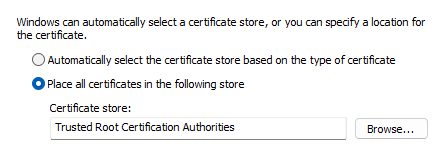
- Browse to the location of the downloaded certificate file and select it.
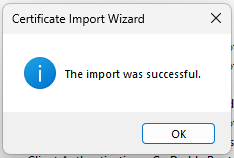
- Follow the prompts to import the downloaded certificate file.
- Once the import is complete, restart your web browser to apply the changes.
Check that everything worked
After installation, browse to a familiar HTTPS site. If you see a padlock and no warnings, SSL decryption is ready. Clear cache or restart your device if prompts persist.